
Individual Card Usage Dashboard
The usage dashboard on each Guru Card gives Authors and Owners valuable insight into how content is being used across the team. These insights can guide content strategy, help identify top-performing resources, and inform content updates or creation.
Access RequiredYou need to have access to edit the Card to open its Usage and Analytics report.
What you see in the report depends on your analytics permissions:
- Admins see the full report, including a table of individual users who viewed the Card with display names, emails, and view dates.
- Users without View Workspace Analytics permission see view count only. The user-level table is not shown.
Accessing Card usage and analytics
- Open the Card in Guru’s web app or browser extension.
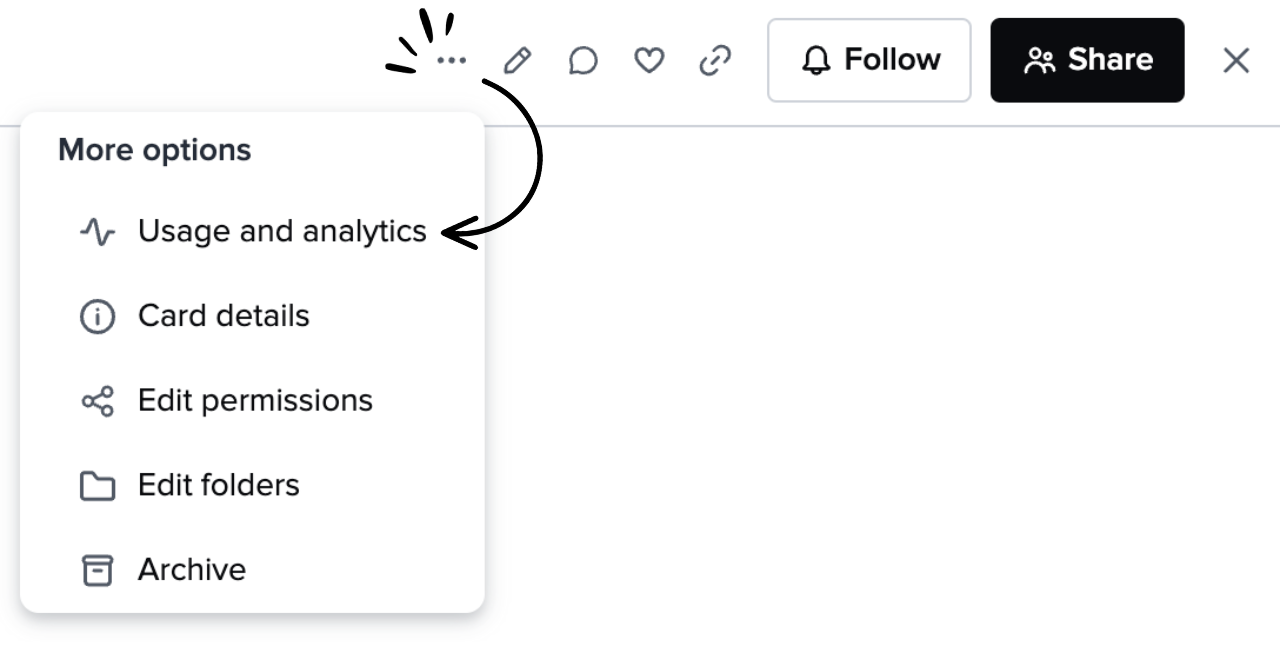
- Click the ellipsis (⋯) menu at the top of the Card.
- Select Usage and analytics.
- To return to the Card view, click Back to Card at the top or click the X to close.
Understanding Card usage reports
Admins see a table of individual users who viewed the Card. Columns include:
- Columns include:
- Display Name
- Fact viewed
- Fact followed
- Users without View Workspace Analytics permission do not see this table. They see view count only.
Exporting and Scheduling Reports
- Learn how to export and schedule recurring report delivery here.
Evaluating Card usage
Card usage data can be evaluated alongside other Guru analytics:
- Compare against Card and Collection analytics to see how the Card performs within its Collection.
- If the Card was used in an announcement, use Announcement insights to compare Group-level engagement.
Tip:To confirm if a user viewed a Card and marked it as read, use the Announcement feature.
Frequently asked questions about the Card usage dashboard
Why can't I see who viewed this Card?
The user-level view table is only visible to Admins. If you don't have the View Workspace Analytics permission, you'll see view count only, without names or emails.
Does this affect the main Analytics dashboards?
No. Only the per-card report opened from the three-dot menu is affected. Workspace-level analytics dashboards follow their own permission model.
How do I get access to the full report?
An Admin can grant View Workspace Analytics permission via a custom role.
Updated 5 months ago