
Connecting Guru's MCP Server to n8n
Integrate Guru's MCP server with n8n to access your organization's knowledge base within your automation workflows
MCP Server URL: https://mcp.api.getguru.com/mcp
Connecting n8n
- From the Overview page, click Credentials, then Create credential
- Select MCP OAuth2 API then click Continue
- Ensure Use Dynamic Client Registration is set to true, then enter https://mcp.api.getguru.com/mcp as the Server URL
- Click Connect my account - this will bring up an authorization screen in Guru where you'll need to accept permissions
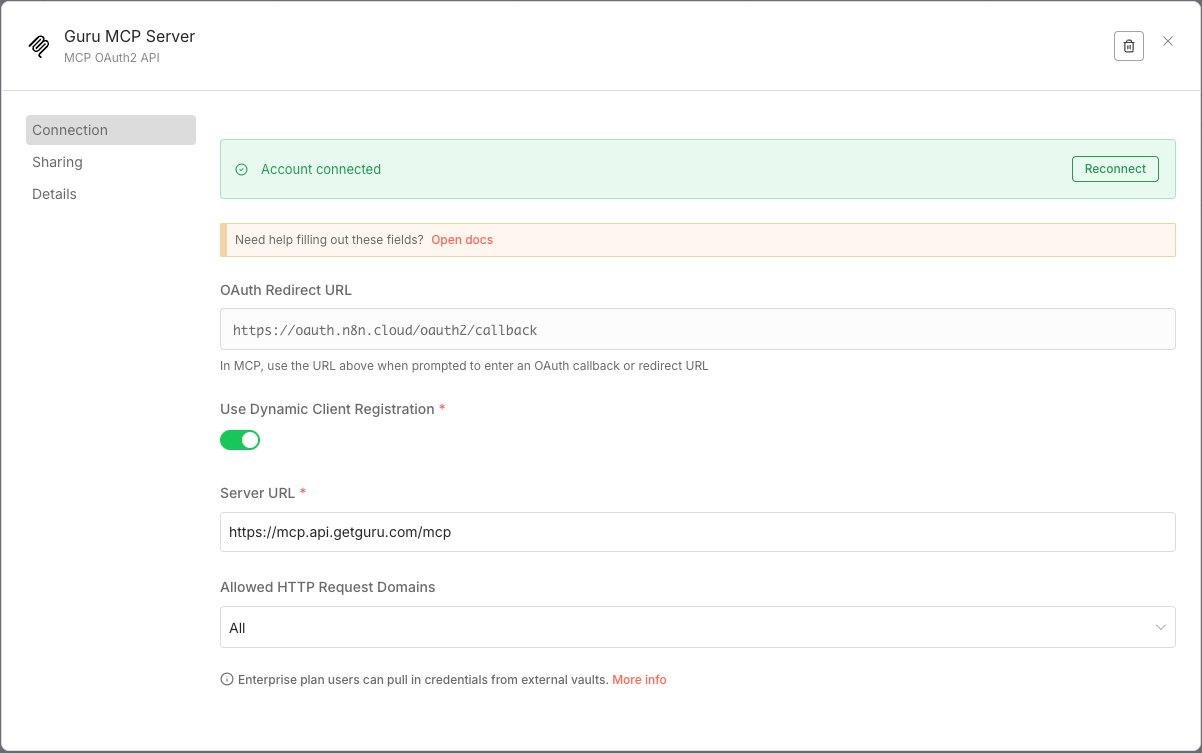
Note: You may receive the following error during Step 4:
Authentication failed: The 'scope' parameter is invalid, the supported scope is 'default'. This is due to an intermittent bug with n8n. If you encounter this error, simply copy the URL from the authentication screen, open a new tab and paste it in. At the end of the URL, changescope=openidtoscope=default, and hit enter. This should bypass the error and bring you to the correct screen where you'll accept permissions.
Configure MCP Client Node
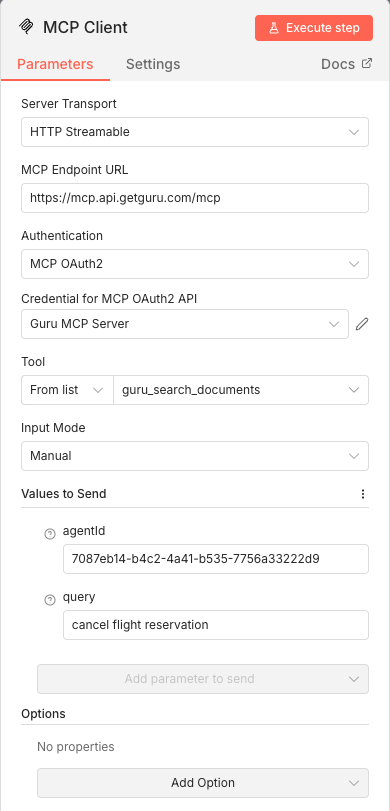
- Now you are ready to use Guru's MCP server in your n8n workflow. Choose the MCP Client node and enter https://mcp.api.getguru.com/mcp as the MCP Endpoint URL.
- Select MCP OAuth2 from the Authentication dropdown
- Select the credential you just created for the Credential for MCP OAuth2 API option.
- You can then select the tool you'd like to use in your workflow. Some tools require an agentId to be passed in. You can find the
agentIdin Guru on the API tab of the Knowledge Agent you'd like to use.
Start using Guru in your workflow
Once you're connected, your AI tool can:
- Ask questions about your internal documentation
- Search for specific topics across your knowledge base
- Integrate Guru's AI capabilities into your development or writing workflows
Additional Resources
Updated 5 months ago
Did this page help you?