
Creating Custom Roles in Guru
Custom roles let you define granular permissions beyond system roles, so access matches how your team works.
Access RequiredOnly Admins (or a relevant custom role) can create and manage custom roles:
Understanding how custom roles work
Custom roles define what actions someone can take, but they don't grant access on their own. You need to assign the role to specific objects—like Collections, Sources, Knowledge Agents, or Pages—before the permissions become active.
Think of it this way: creating a custom role is like designing a key. Assigning that role to an object is like giving someone that key to open a specific door.
How custom roles differ from System Roles
Guru has three unchangeable System Roles that work at the workspace level:
Admin: Manages your entire workspace—configuration, permissions, content, users, and integrations.
Creator: Can create new Collections, Knowledge Agents, Pages, and Sources. When a Creator makes something new, they automatically become the Owner of that object.
Owner: Has full control over specific objects where they're designated as Owner. Owners can edit, share, and delete their objects, but have no access to anything else unless explicitly granted.
ImportantOwners and Creators only have permissions for their specific objects. They don't automatically get workspace-wide access.
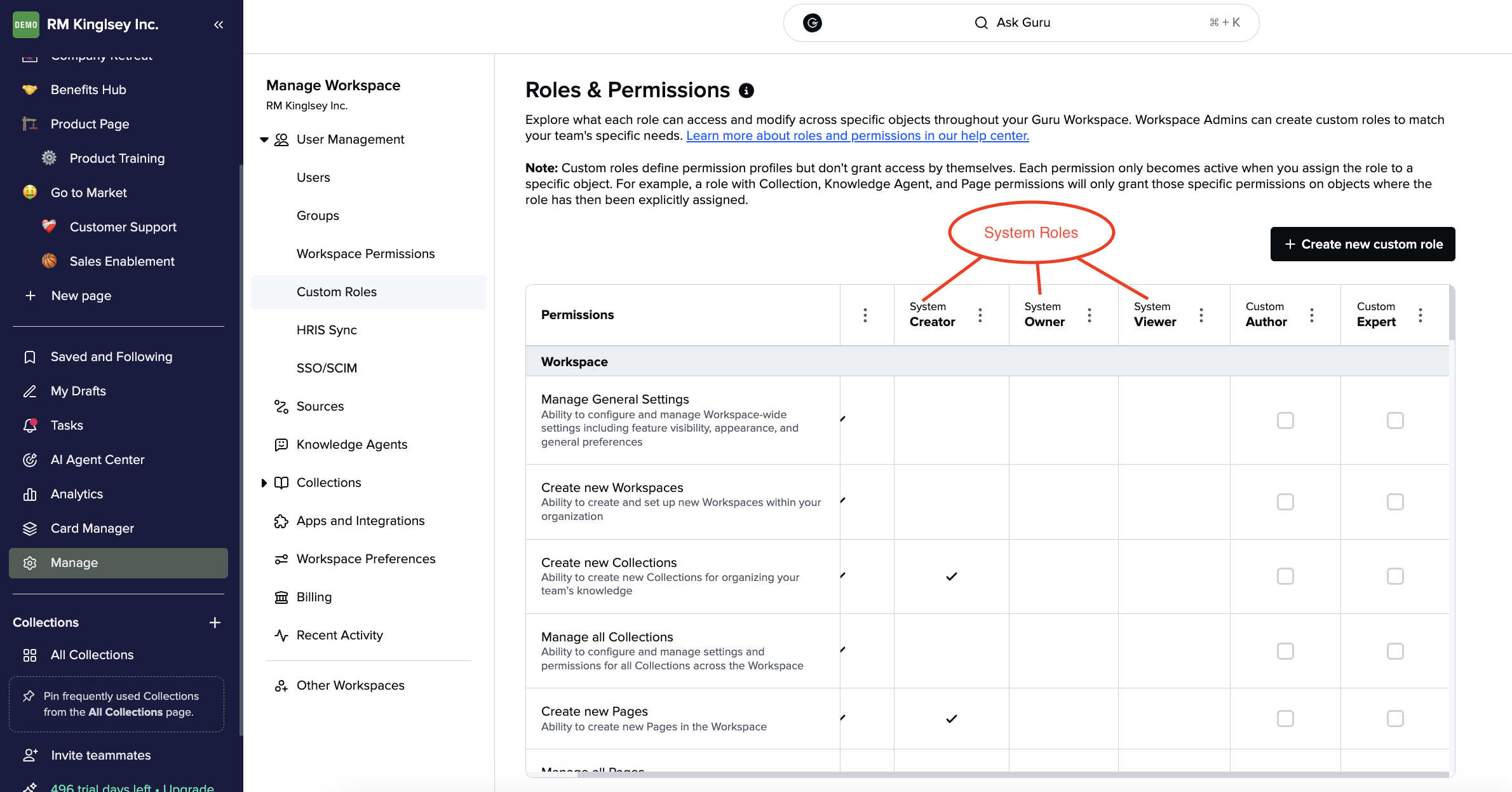
Creating a new custom role
- Go to Manage > Custom Roles.
- Click Create New custom role.
- Name your role something descriptive (like "Support Verifier" or "Content Reviewer").
- Click Create.
- Use the permission checkboxes to define what this role can do for each object type.
Your new role will appear in the roles list, but remember—it won't do anything until you assign it to specific objects.
Duplicating an existing role
If you want to create a role that's similar to one you already have:
- Go to Manage > Custom Roles.
- Click the three dots next to the role you want to copy.
- Select Duplicate.
- Rename the role and adjust the permissions as needed.
Best practices
- Name roles clearly: Use names that describe the purpose, like "Sales Team Editor" or "Support Viewer."
- Start with fewer permissions: You can always add more later. It's harder to take permissions away once people are used to having them.
- Test before rolling out: Assign the role to a small group first to make sure the permissions work as expected.
- Document your roles: Keep track of which roles are for what purpose, especially as your team grows.
For guidance on creating Author or Expert roles, see: Best Practices: Creating Author and Expert Roles with Custom Roles
Assigning roles to objects
After creating your custom role, you need to assign it to give people access.
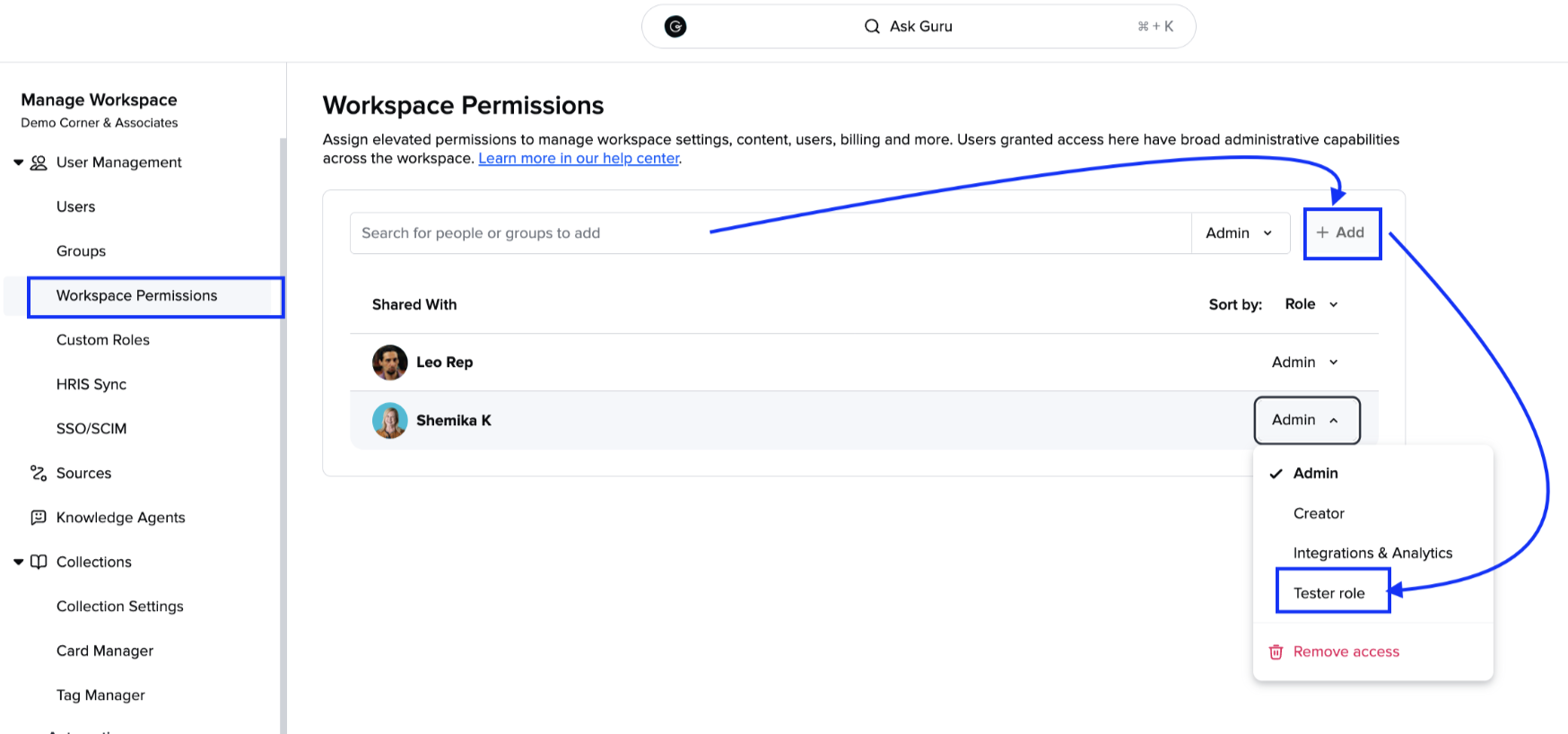
- Go to the object you want to grant access to (Collection, Source, Knowledge Agent, or Page).
- Open the permissions or settings for that object.
- Add the user or group.
- Select your custom role from the dropdown.
- Click Save.
The permissions will take effect immediately for anyone with that role.
NoteIf a custom role includes workspace-level permissions, you'll also need to set those in workspace permissions.
Important details about role assignment
- Creating an object automatically makes you the Owner. When someone creates a Collection, Page, or other object, they become the Owner and get full control over it.
- Custom roles can't be set as defaults. Unlike System Roles, you can't make a custom role the default for new objects—you'll need to assign it manually.
- Multiple roles are cumulative. If someone has multiple roles assigned to the same object, they get the combined permissions from all of them.
For more detailed guidance on assigning permissions, see: Permissioning knowledge in Guru
Frequently asked questions about custom roles
What happened to Author and Expert roles?
If your team existed before custom roles launched, your Author and Expert roles were converted to custom roles. You can still find them under Manage > Custom Roles and customize them to fit your needs. Learn more: Understanding the new updates to roles and permissions
What do the different analytics permissions give access to?
- Workspace Analytics: Unlocks all dashboards and adds a "Card Usage by User" tile in Card analytics
- View User Analytics: Access to the Group and User Drill Down dashboard (shows data from collections you have access to)
- View Author Analytics: Access to Adoption, Feature Usage, Group Impact, Verification Health, Knowledge Health, Contribution, and Announcements dashboards (shows data from collections where you have this permission)
- View Agent Analytics: Access to the Answers dashboard
How should I plan out a new custom role?
Use this framework to think through what you need:
| Question | Example |
|---|---|
| Role name | "Verifier" |
| What's the goal? | Verify Cards only |
| Who is this for? | Support SMEs |
| Workspace-level actions? | No |
| Which objects need access? | Collections, Knowledge Agents |
| Permissions per object | View, Edit, Verify |
| Notes | Should not be able to delete or archive content |
Can someone have multiple roles?
Yes. When someone has multiple roles on the same object, they get all the permissions from each role combined. The most permissive role wins.
What happens if I delete a custom role?
Deleting a role removes it from all objects where it was assigned. People who only had that role will lose access immediately. Make sure to reassign access before deleting a role that's actively in use.
Do I need to assign custom roles to everyone?
No. System Roles (Admin, Creator, Owner) work automatically at the workspace level. Custom roles are for when you need more specific control over who can do what with particular objects.
Want a closer look at some key Guru features and best practices?Check out our events page for demos, workshops, new release roundups, Getting Started bootcamp, guest panelists and more! For upcoming live events and a series of past recordings: Click here to register
Updated 6 months ago